Multi-League Scheduler
Complete User Manual — Everything you need to create professional, fair schedules.
1. Getting Started
Multi-League Scheduler is a web application for creating, managing, and sharing sports league schedules. It works entirely in your browser — no software to install.
Guest Mode
You can try all features instantly without creating an account. In guest mode:
- All Pro features are unlocked so you can explore everything
- Your data is saved locally in your browser
- Data does not sync across devices
Creating an Account
Click Register on the landing page. Enter your email and password, accept the terms, and verify your email. Once logged in, your leagues sync automatically across all your devices.
2. Leagues
A league is the core container for your schedule. Each league has its own teams, arenas, referees, settings, and fixtures.
Creating a League
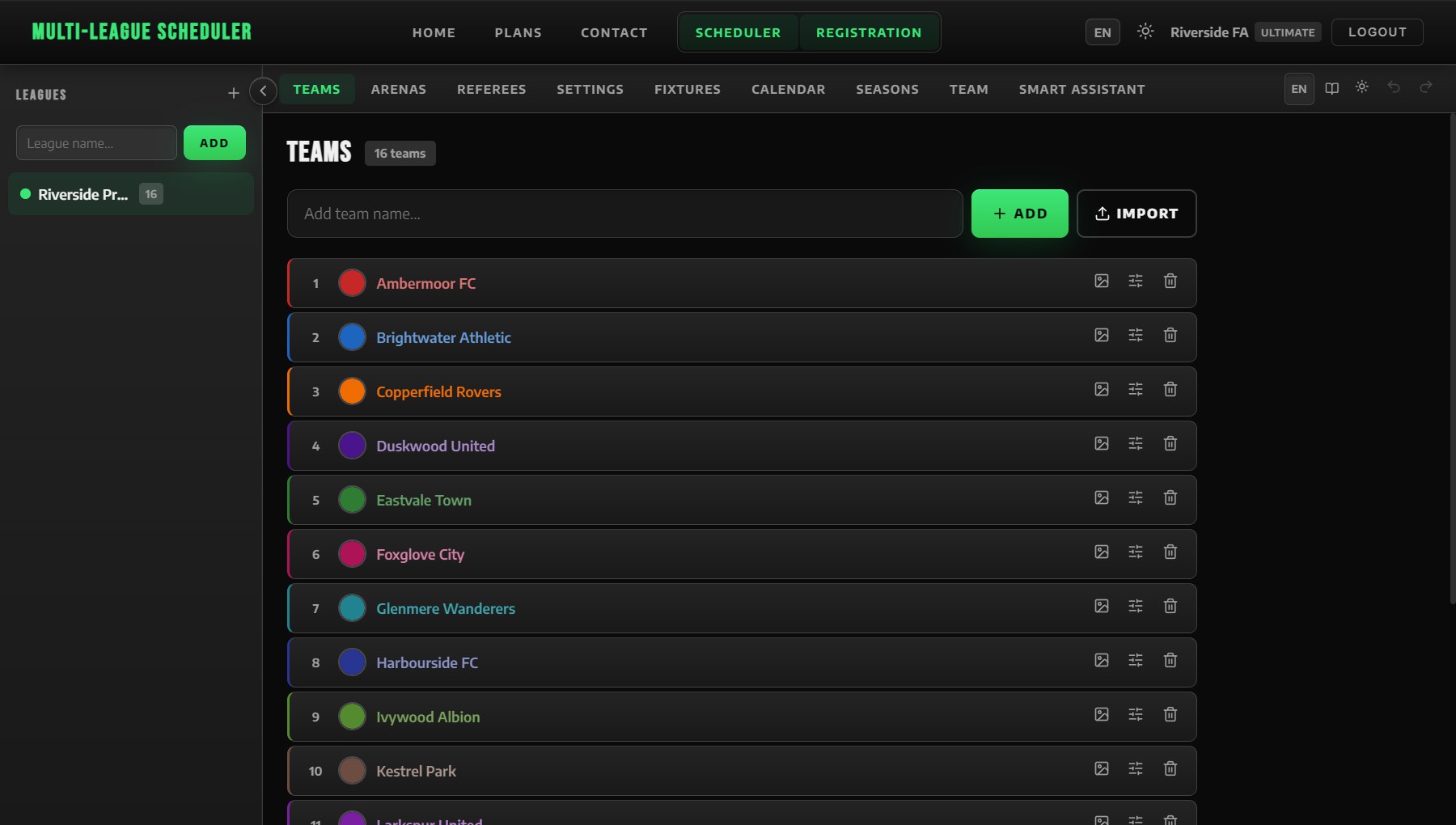
Click the + New League button in the sidebar. Give your league a name (e.g., "Sunday Football", "U-14 Basketball"). Each league gets a unique color for easy identification in the calendar.
Switching Between Leagues
All your leagues appear in the left sidebar. Click any league name to switch to it. The main area updates to show that league's data.
Duplicating a League
Need a similar setup for a new season or division? Use the Duplicate option in the sidebar to clone a league with all its teams, arenas, referees, and settings. Fixtures are not copied — you generate fresh ones. (Pro)
| Plan | Max Leagues |
|---|---|
| Free | 1 |
| Starter | 2 |
| Club | 8 |
| Pro | Unlimited |
3. Teams
Adding Teams
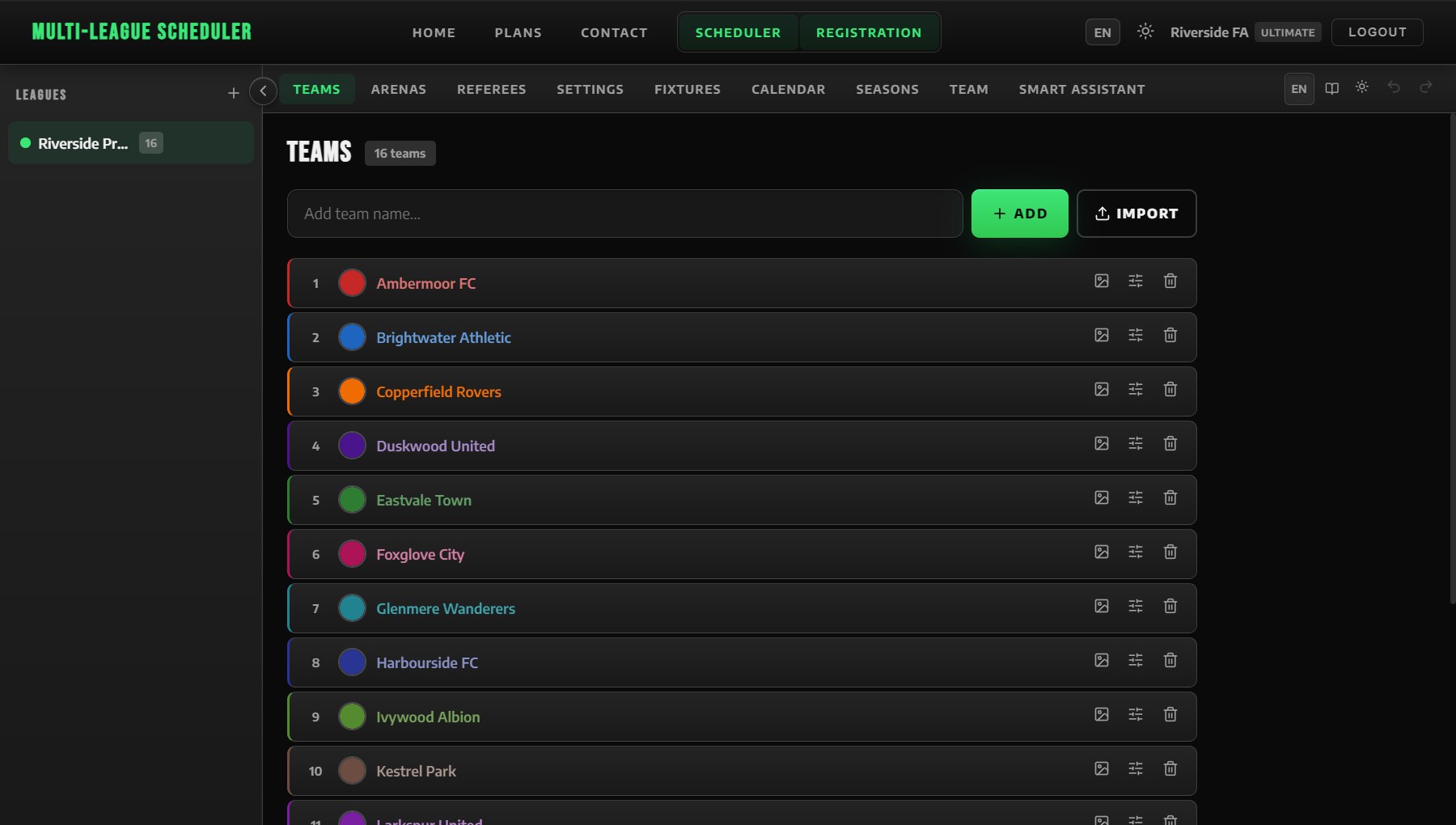
Go to the Teams tab. Type a team name and press Enter or click Add. Each team can have:
- Custom color — click the color circle next to a team name
- Logo — paste a logo URL (Club+)
Rename a team by clicking the edit icon. Delete a team with the trash icon.
Bulk Import
Have a long list of teams? Click Import to paste names (one per line) or upload a CSV/TXT file. All teams are added at once. (Club+)
Team Preferences
Expand a team's row to reveal preference settings. These influence the scheduling algorithm: (Pro)
- Preferred Days — days the team would prefer to play. These are soft preferences: the algorithm scores preferred days higher, but will still schedule on other days if needed to complete the season. No games are ever dropped due to preferred days.
- Blocked Days — days the team cannot play (e.g., practice days). These are hard constraints: the algorithm will never place a game for that team on a blocked day.
- Priority Level — 1 to 5 scale; higher-priority teams get better time slots
- Preferred Arenas — venues the team prefers for home games
4. Arenas
Go to the Arenas tab to add your venues. You need at least one arena before generating fixtures.
Operating Hours
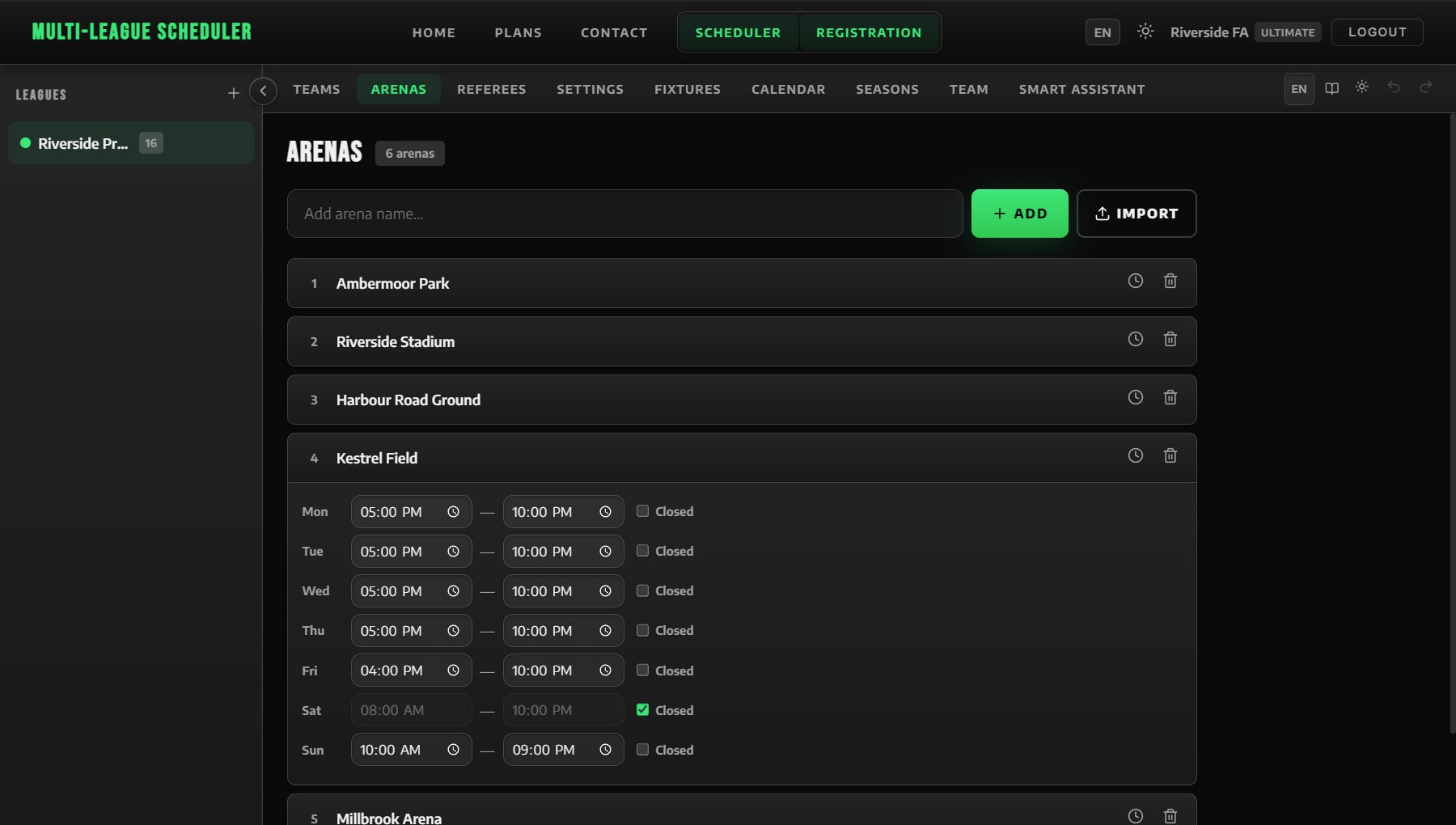
Each arena can have per-day operating hours (e.g., Monday 08:00–22:00). The scheduler will never place a game that would start before opening or end after closing time.
If an arena can't be used on a certain day (you rent it only on some days, the school is closed), tick Closed next to that day — no games go there that day.
Games run at the same time on different arenas: each kick-off time takes as many games as there are arenas open (and referees free), so a club with 8 courts can play a whole round together. With a single arena, games follow one another.
5. Referees
The Referees tab lets you manage your officials. (Club+)
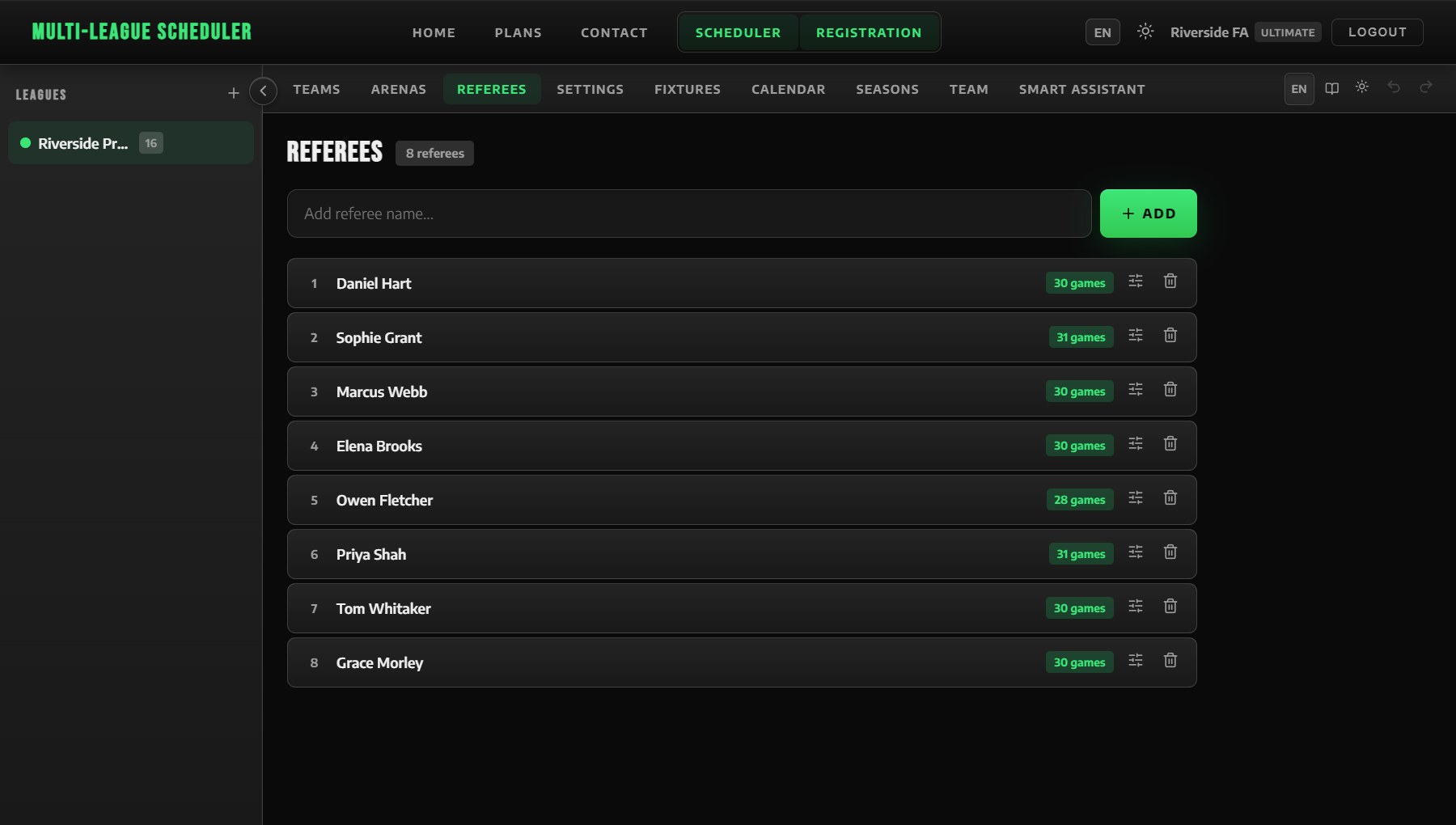
- Add referees by name
- Each game can have up to 3 referees (1 main + 2 assistants)
- The scheduler automatically assigns referees with a diversity algorithm — it avoids assigning the same referee to the same team repeatedly
- A workload indicator shows how many games each referee has been assigned
6. League Settings
The Settings tab lets you configure how your league operates. These settings directly control the scheduling algorithm.
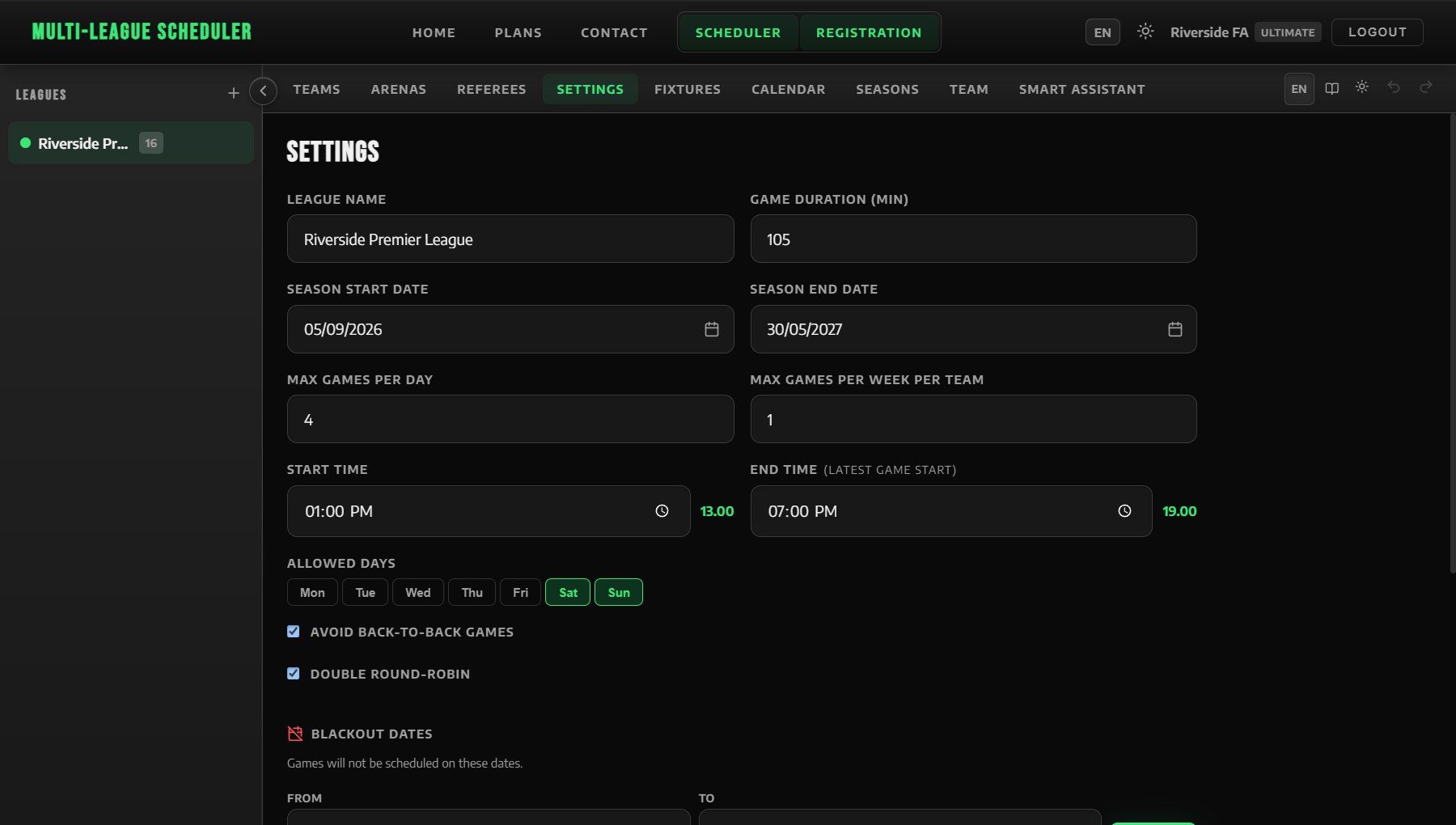
Allowed Days
Select which days of the week games can be scheduled. For example, a weekend-only league would select Saturday and Sunday. If no days are selected, all 7 days are allowed.
Blackout Dates
Add date ranges when no games should be scheduled — holidays, school breaks, venue closures, etc. You can add multiple blackout periods. (Starter+)
Constraints & Options
| Setting | Description |
|---|---|
| League Name | Identifies the league in the sidebar and exports |
| Start Time | Default game kick-off time (e.g., 18:00) |
| Game Duration | Minutes per game (15–300). Used for overlap detection |
| Season Start / End | Date range the season runs. Fixtures are generated within these dates |
| Max Games Per Day | Maximum number of games on any single day (1–50) |
| Max Games Per Week Per Team | Prevents a team from being over-scheduled in a single week (Starter+) |
| Avoid Back-to-Back | If enabled, no team plays on consecutive days (Starter+) |
| Double Round-Robin | Each pair plays twice (home and away). Return legs are spaced for maximum gap (Starter+) |
7. Fixtures
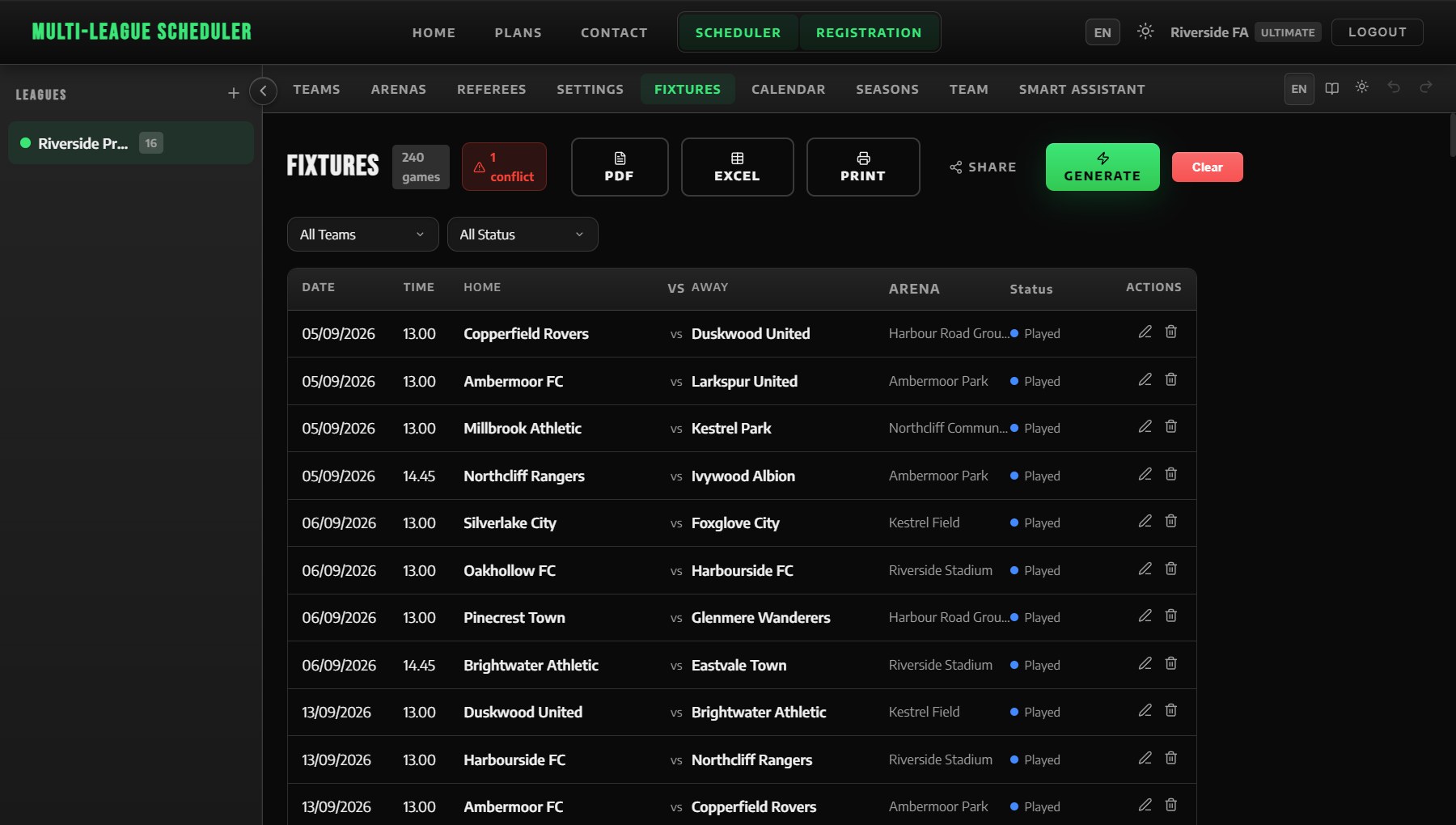
Generating Fixtures
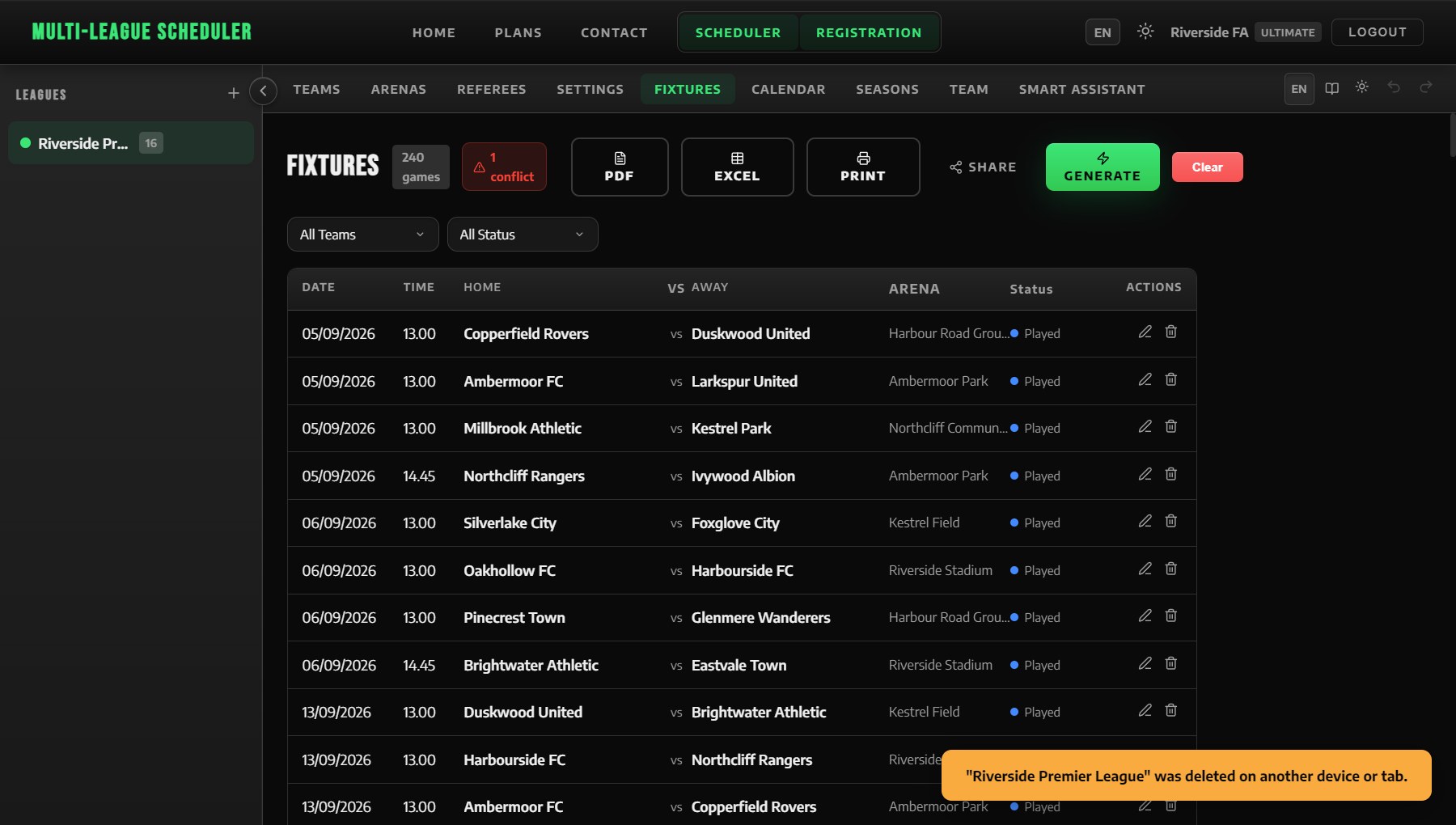
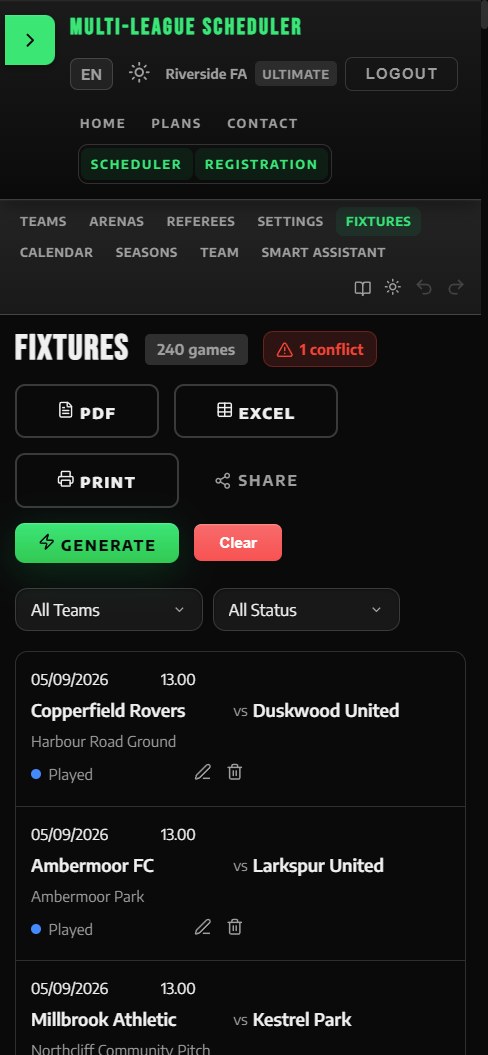
Go to the Fixtures tab and click Generate. The algorithm creates a complete round-robin schedule that respects all your settings, preferences, and constraints.
Each generated fixture includes: date, time, home team, away team, venue, and (if referees are configured) referee assignments.
You can regenerate at any time — each generation produces a fresh schedule. Click Clear to remove all fixtures.
Quality Score
After generating fixtures, a Quality Bar appears showing fairness metrics:
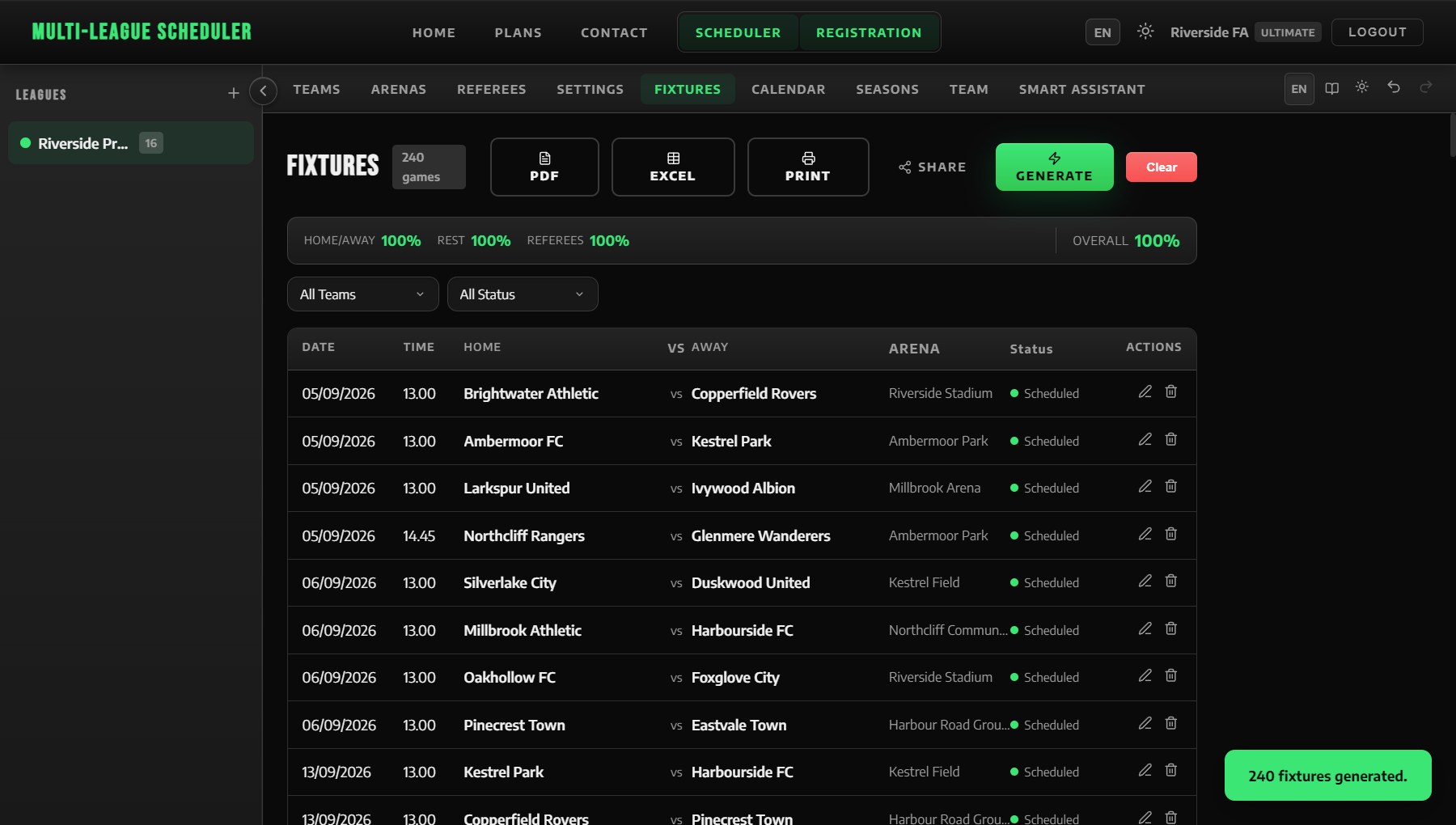
| Metric | What It Measures | Weight |
|---|---|---|
| Home/Away | How evenly each team's home and away games are balanced | 35% |
| Rest | How fairly rest days are distributed between teams | 35% |
| Ref Diversity | How evenly referees are spread across different teams | 30% |
| Overall | Weighted average of all three metrics | — |
Scores are color-coded: green (80%+) means excellent, amber means acceptable, red means review needed.
Editing a Game
Click the edit icon on any fixture row to open the Game Editor. You can change:
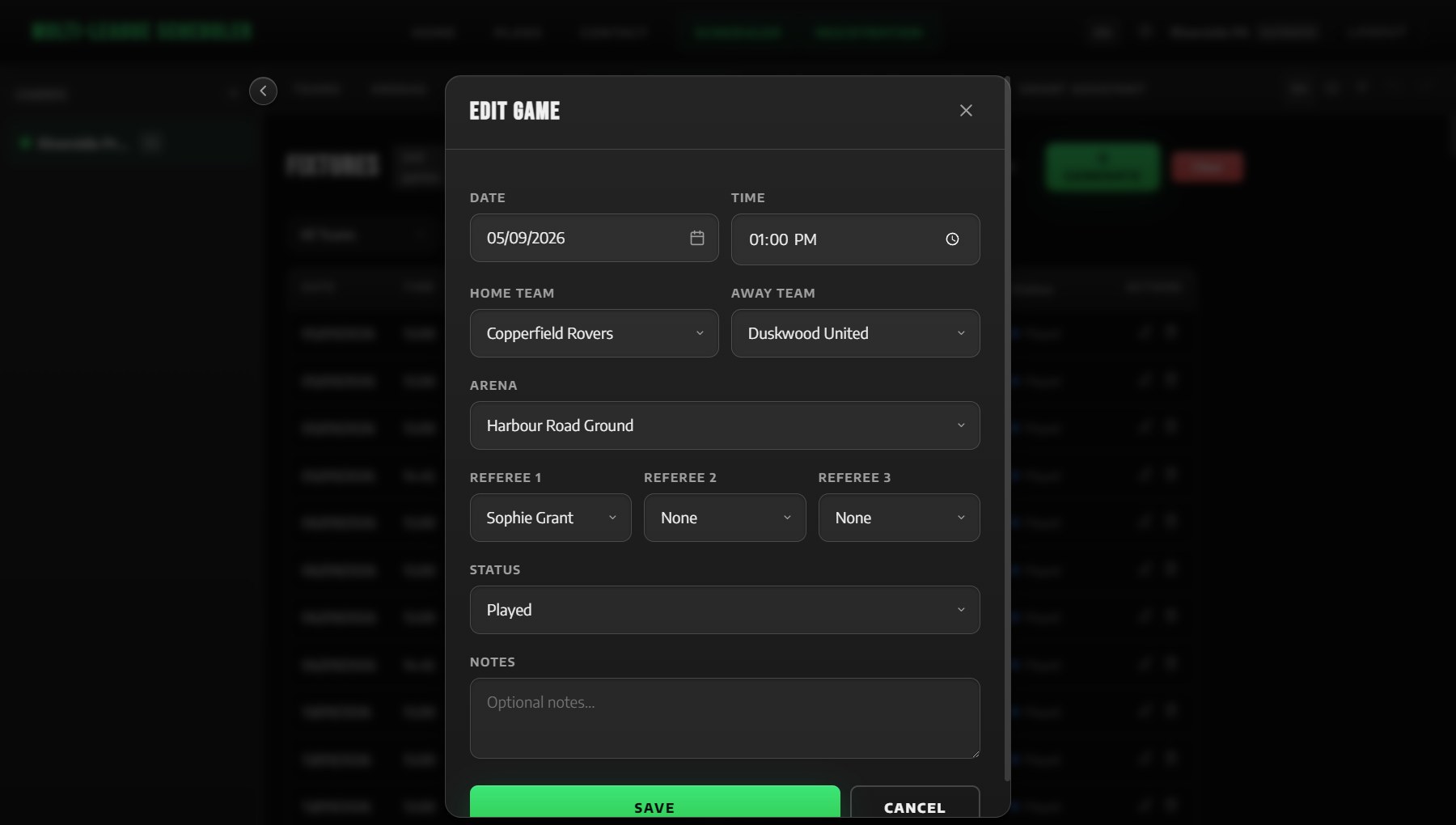
- Date and time
- Home and away teams
- Venue
- Up to 3 referees
- Game status
- Notes
Game Status
Each game has a status indicator:
- ● Scheduled — upcoming game (default)
- ● Played — completed game
- ● Postponed — delayed to a future date
- ● Cancelled — will not be played
- ● Forfeited — result decided without play
Filtering Fixtures
Use the dropdown filters above the fixtures table to narrow by: (Club+)
- Team — show only one team's games
- Status — show only scheduled, played, postponed, or cancelled games
Printing Fixtures
Click the Print button in the Fixtures header to open a clean, print-ready view of your schedule in a new browser window. The print view uses a white background and black text regardless of your theme. It supports multiple pages automatically — the browser print dialog handles page breaks. After printing, the window closes itself.
8. Conflict Detection
The conflict engine runs automatically and alerts you to scheduling problems. A red badge on the Fixtures tab shows the number of active conflicts. (Club+)
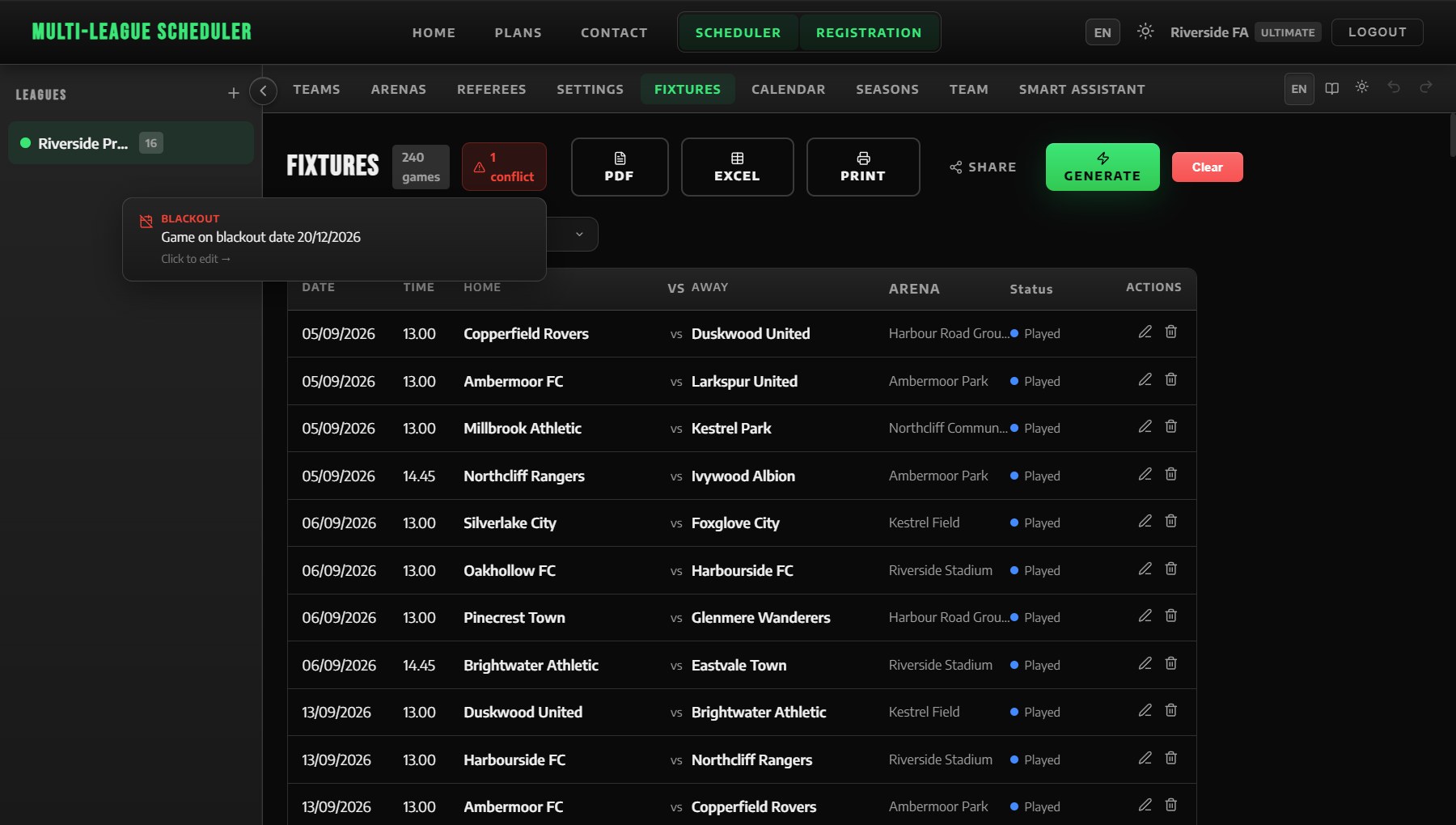
Within a League
The system detects 10 types of conflicts:
| Conflict | Description |
|---|---|
| Team Double-Booking | A team appears in two games at the same time |
| Venue Double-Booking | An arena is scheduled for two games at the same time |
| Referee Double-Booking | A referee is assigned to two overlapping games |
| Blackout Date Violation | A game is placed on a blackout date |
| Allowed Days Violation | A game is scheduled on a non-allowed day |
| Team Blocked Day | A game is on a day the team has blocked |
| Arena Unavailable | A game is outside the arena's operating hours |
| Home Arena Mismatch | A home game is not at the team's designated home arena |
| Max Games Per Week | A team has too many games in one week |
| Back-to-Back Games | A team plays on consecutive days (when avoidance is enabled) |
Conflicted games are highlighted with a red left border in the fixtures table.
Cross-League Conflicts
If you manage multiple leagues that share arenas or referees, the system detects conflicts across all your leagues. For example, if Arena A is booked for League 1 and League 2 at the same time, both will show a conflict. Arenas and referees are matched by name across leagues, so a shared physical venue is correctly detected even when it has different internal IDs.
9. Calendar
The Calendar tab provides visual schedule views. Games from all your leagues appear together, color-coded by league.
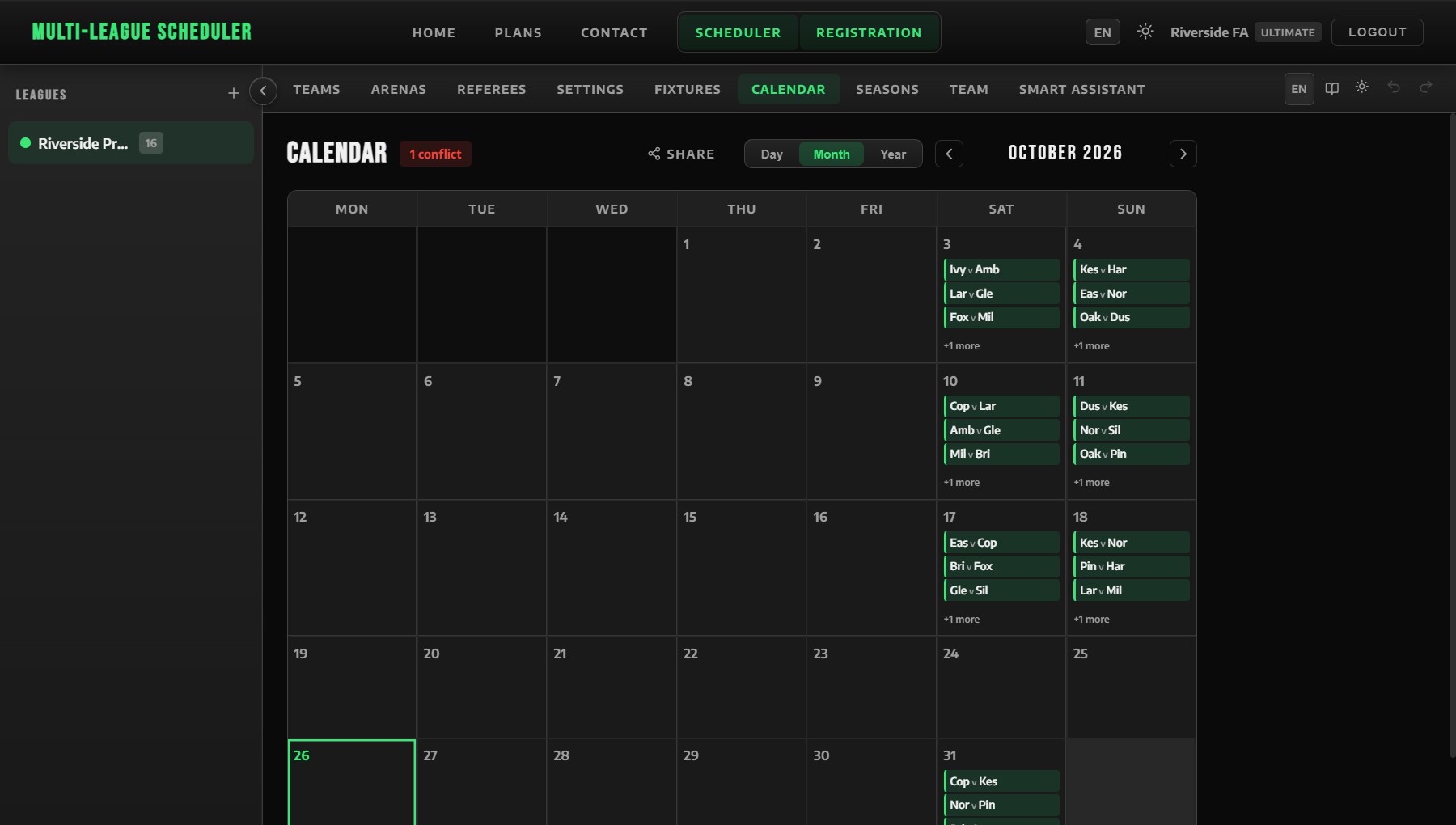
Month View
A traditional calendar grid showing games as colored cards on each day. Days with conflicts show a warning indicator. Blackout dates are greyed out. Click a day to switch to Day view.
Day View
Shows all games for a single day, sorted by time. Each game card displays the teams, venue, time, status, and which league it belongs to.
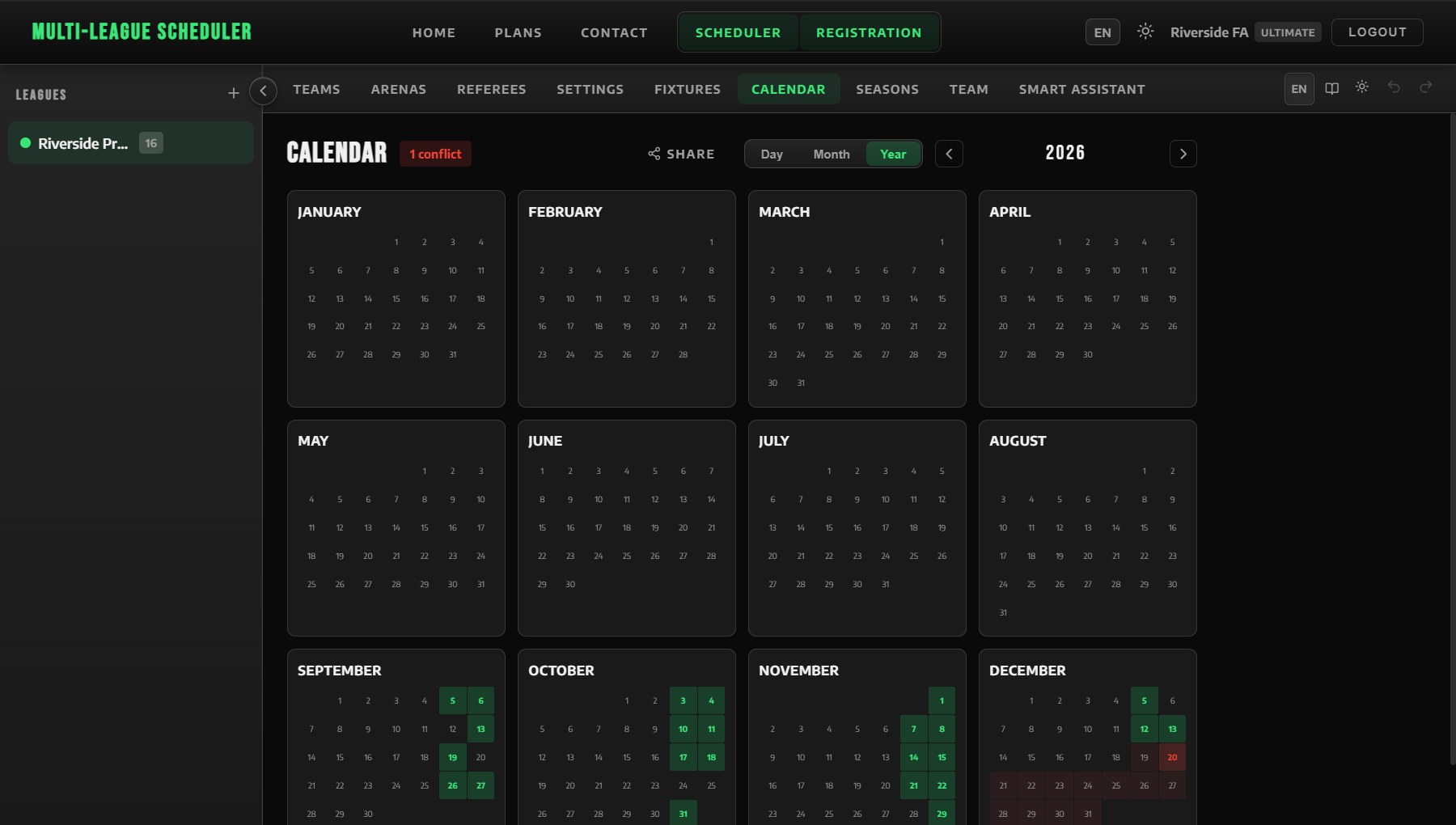
Year View
A compact overview of all 12 months. Dots indicate days with games; red dots indicate conflicts. Click any month to zoom in.
Drag & Drop Rescheduling
In Month view, drag a game card from one day to another to reschedule it instantly. The conflict engine re-checks the schedule in real-time. (Club+)
10. Seasons
The Seasons tab lets you archive completed seasons and start fresh. (Club+)
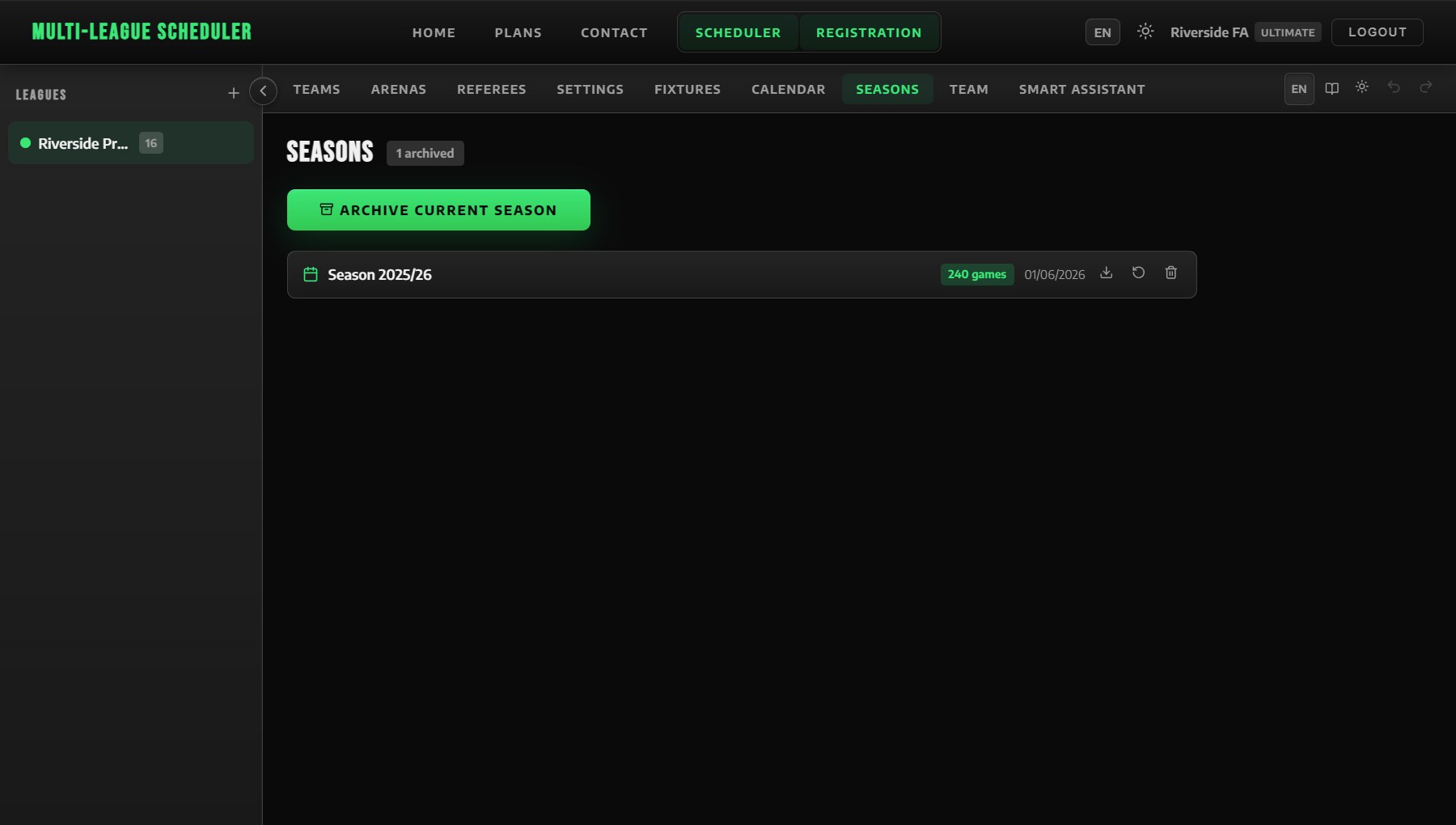
- Archive — save the current fixtures with a name (e.g., "2025 Spring Season")
- Restore — load a previous season's fixtures back into the league
- Delete — permanently remove an archived season
Archived seasons show the game count and the date they were archived. You can archive as many seasons as you like.
11. Team Schedule
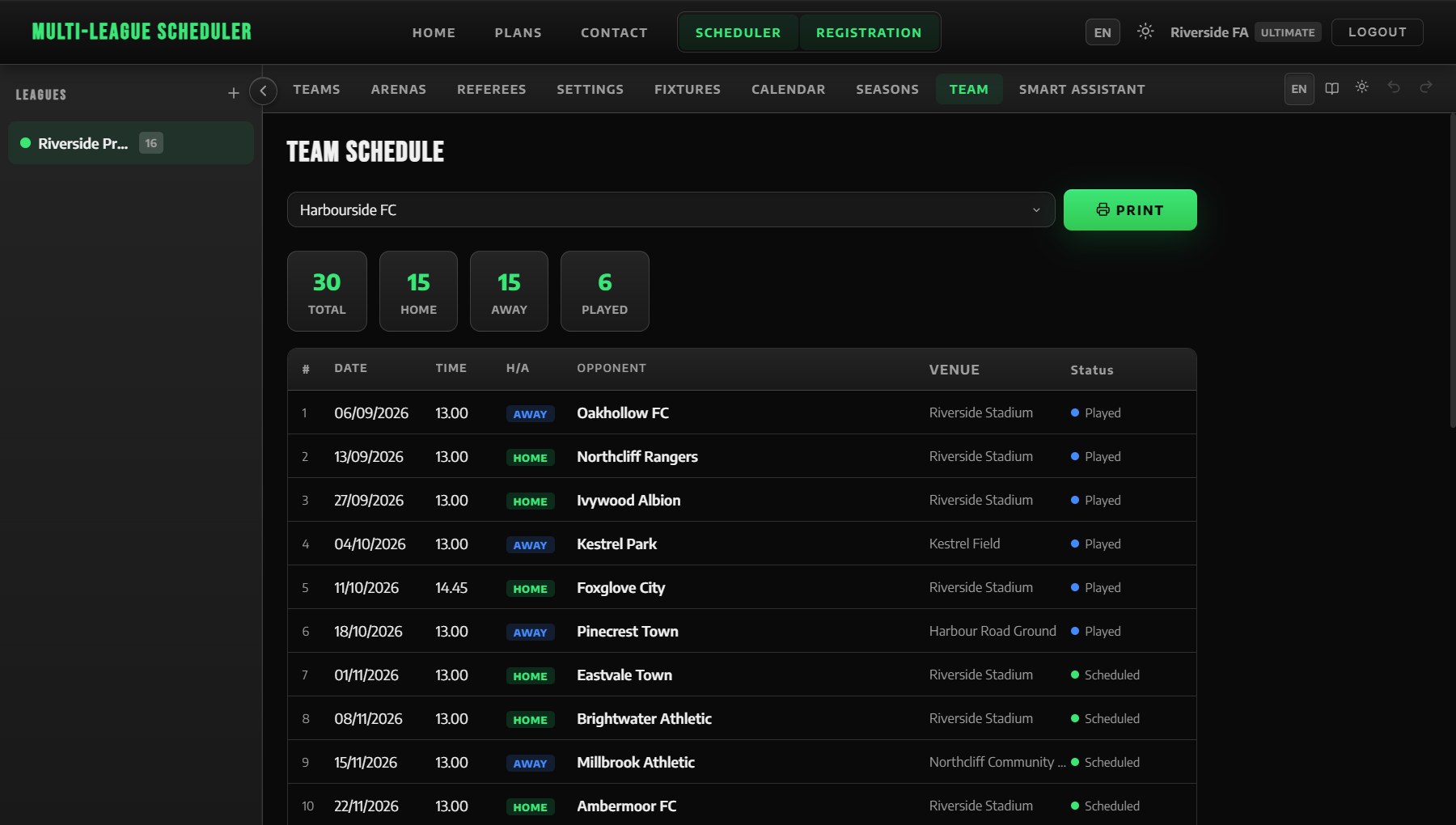
The Team tab gives you a dedicated per-team view of the season schedule. This is useful for printing a schedule sheet for a specific team or manager.
Using the Team Schedule View
- Go to the Team tab
- Select a team from the dropdown
- The schedule table appears immediately, showing all that team's games sorted by date
Each row shows:
- # — game number in sequence
- Date & Time — formatted to your regional preference
- H/A badge — HOME or AWAY indicator
- Opponent — the opposing team
- Venue — where the game is played
- Status — scheduled, played, postponed, etc.
A stats bar above the table shows the team's Total, Home, Away, and Played counts at a glance.
Printing a Team Schedule
With a team selected, click the Print button next to the dropdown. A clean print window opens with the league name, team name, and full schedule formatted for paper. HOME/AWAY badges are color-coded in print. The window closes itself after printing.
12. Export & Share
PDF Export
Click the PDF button in the Fixtures header to download a professionally formatted PDF document of your schedule. Includes all games sorted by date with team names and venues. (Starter+)
Excel Export
Click the Excel button to download a spreadsheet with all fixture data. The file is fully sortable and filterable in Excel or Google Sheets. (Pro)
Both the Fixtures panel and the Team Schedule tab have a Print button. Clicking it opens a dedicated print window with a clean white layout, no app chrome, and full multi-page support. The window closes automatically after the browser print dialog is dismissed.
Share Links
Click the Share button to generate a unique public link to your schedule. (Pro)
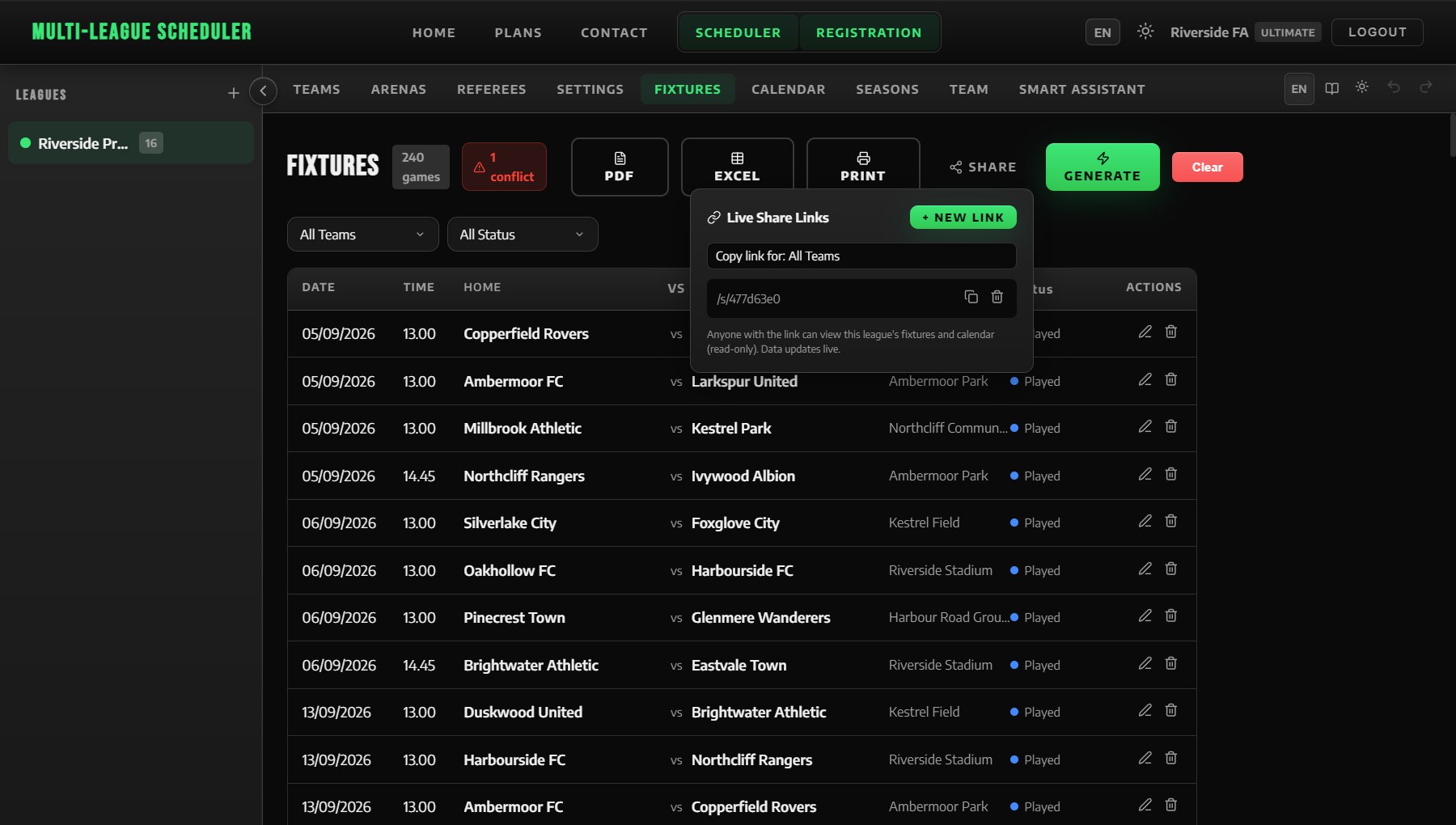
- Anyone with the link can view the schedule — no account required
- The link shows live data — when you update fixtures, viewers see the changes
- Viewers get a read-only view; they cannot edit anything
- You can create multiple share links for one league
- Revoke access anytime by deleting the link
13. Smart Assistant
The Smart Assistant tab is your built-in helper that knows your league data. (Pro)
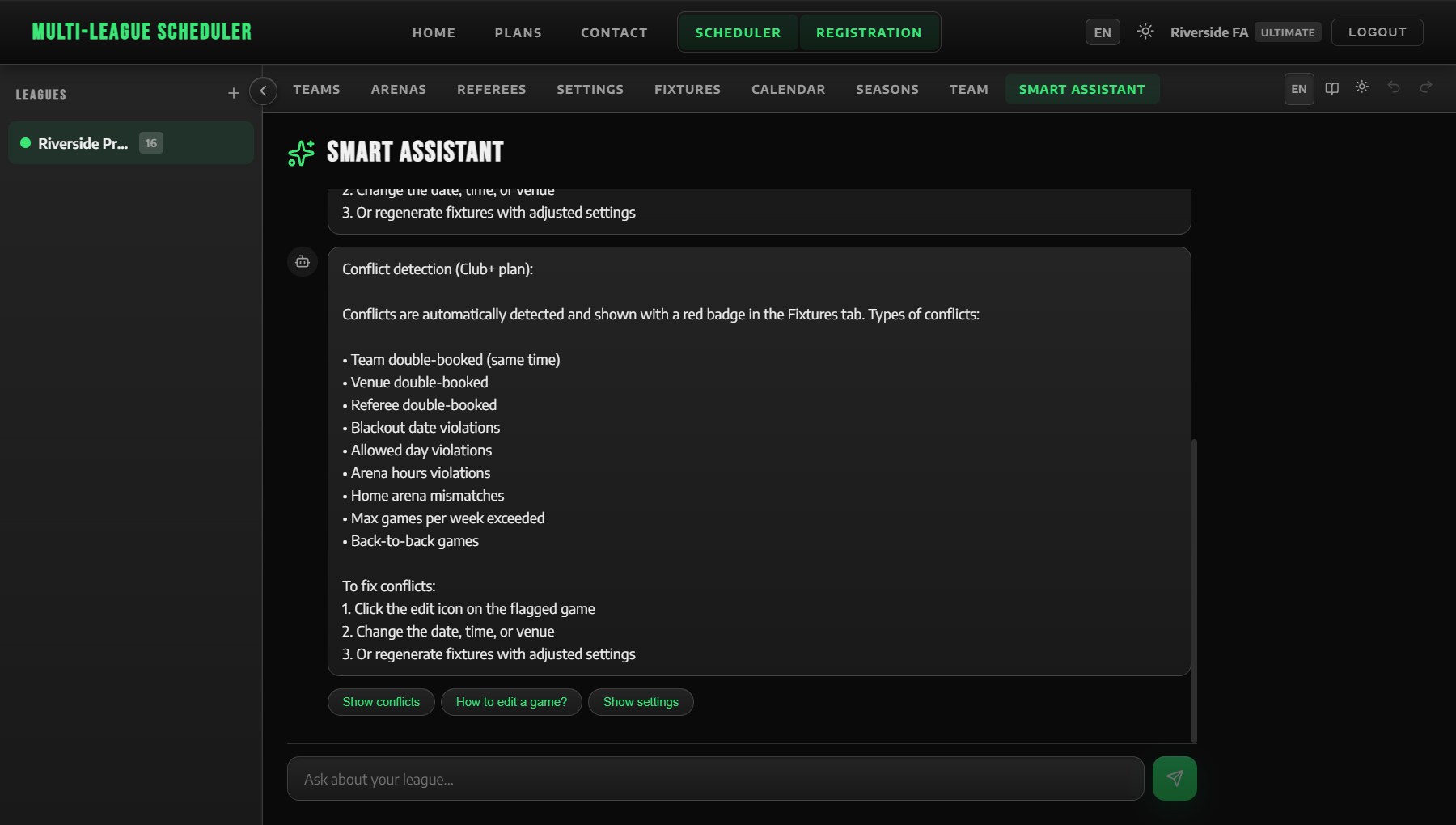
Type a question in any of the supported languages; it recognises common questions and answers from your own data. Examples:
- "How do I add teams?"
- "Show me the schedule for Team Alpha"
- "How many conflicts do I have?"
- "What's the referee workload?"
- "Compare the plans"
- "How do I export to PDF?"
The assistant can analyze your league data (team stats, rest distribution, referee workload) and provide step-by-step how-to guidance for every feature.
14. Plans & Pricing
| Feature | Free | Starter €19/yr |
Club €39/yr |
Pro €79/yr |
Ultimate €99/yr |
|---|---|---|---|---|---|
| Leagues | 1 | 2 | 4 | 16 | Unlimited |
| Teams per league | 8 | Unlimited | Unlimited | Unlimited | Unlimited |
| Venues per league | 4 | Unlimited | Unlimited | Unlimited | Unlimited |
| Fixture Generation | ✓ | ✓ | ✓ | ✓ | ✓ |
| Match Days & Games per Day | ✓ | ✓ | ✓ | ✓ | ✓ |
| Calendar Views | ✓ | ✓ | ✓ | ✓ | ✓ |
| ✓ | ✓ | ✓ | ✓ | ✓ | |
| PDF Export | — | ✓ | ✓ | ✓ | ✓ |
| Game Status Tracking | — | ✓ | ✓ | ✓ | ✓ |
| Blackout Dates | — | ✓ | ✓ | ✓ | ✓ |
| Max Games a Week & Back-to-Back | — | ✓ | ✓ | ✓ | ✓ |
| Double Round-Robin | — | ✓ | ✓ | ✓ | ✓ |
| Conflict Detection | — | — | ✓ | ✓ | ✓ |
| Referees & Workload | — | — | ✓ | ✓ | ✓ |
| Drag & Drop Calendar | — | — | ✓ | ✓ | ✓ |
| Team Logos | — | — | ✓ | ✓ | ✓ |
| Bulk Import | — | — | ✓ | ✓ | ✓ |
| Filters | — | — | ✓ | ✓ | ✓ |
| Season Archive | — | — | ✓ | ✓ | ✓ |
| Registration events | — | — | 1 (up to 32 athletes) | 1 (up to 64 athletes) | Unlimited |
| Team Preferences | — | — | — | ✓ | ✓ |
| Excel Export | — | — | — | ✓ | ✓ |
| Smart Assistant | — | — | — | ✓ | ✓ |
| Share Links | — | — | — | ✓ | ✓ |
| Duplicate & New Season | — | — | — | ✓ | ✓ |
Prices exclude VAT, which may apply depending on your country.
All plans are billed annually. Payments are processed by Paddle. You can cancel anytime — access continues until the end of your billing period.
Upgrading Your Plan
You can upgrade from Free to a paid plan, or from a lower paid plan to a higher one, at any time from the Pricing page.
- If you are on a paid plan, upgrading is prorated — you only pay the difference for the remaining time in your current billing period. You are not charged for time you have already used.
- Your new plan takes effect immediately. The extra leagues, features, and limits are unlocked instantly.
- You will receive a confirmation email after a successful upgrade.
Managing Billing & Cancelling
Paid subscribers can manage their subscription through the Paddle billing portal:
- Log in and go to Profile (top-right menu)
- In the Plan section, click Manage Billing
- The Paddle portal opens in a new tab where you can:
- Cancel your subscription
- View and download invoices
- Update your payment method
Deleting Your Account
To permanently delete your account and all your data:
- Log in and go to Profile
- Scroll to the bottom and click Delete my account
- Enter your password to confirm
- Click Confirm Delete
15. Data & Sync
- Auto-save — every change is saved instantly to your browser and synced to the cloud within 2 seconds
- Offline support — the app works offline using local storage; changes sync when you reconnect
- Cross-device — log in on any device to access your leagues
- Undo / Redo — up to 20 undo steps with full redo stack
16. Languages
The app is available in 8 languages:
English, Greek, Russian, French, Spanish, German, Italian, Portuguese
Switch language from the language selector on the landing page or within the app. The Smart Assistant also understands questions in all supported languages.
17. The Scheduling Algorithm
Multi-League Scheduler uses a professional-grade scheduling engine with techniques used at the highest levels of sports organization. Here is what makes our algorithm stand out:
The classic circle method generates perfectly balanced rounds where every team plays every other team exactly once (or twice in double round-robin). One team stays fixed while the others rotate — guaranteeing mathematical fairness.
The algorithm alternates home and away assignments to ensure no team plays more than two consecutive home or away games. Over the season, each team's home and away count stays as close to 50/50 as mathematically possible.
The scheduler tracks cumulative rest days per team and uses a scoring function when selecting dates. It actively avoids giving one team long rest periods while another plays on tight turnaround. The result is equalized rest gaps across all teams.
A technique used by UEFA: carry-over occurs when Team A's opponent in round N becomes Team B's opponent in round N+1, transferring fatigue or momentum effects. The algorithm tests up to 300 random permutations of round order and selects the arrangement with the lowest carry-over score.
When assigning referees, the algorithm maintains an exposure matrix tracking how often each referee has officiated each team. New assignments are weighted 10× toward diversity, ensuring no referee sees the same team excessively. Workload balancing (1× weight) ensures roughly equal game counts.
When multiple teams share a venue, the algorithm applies a penalty for scheduling too many different home teams at the same arena on the same day. This spreads venue usage more evenly and reduces logistical pressure on shared facilities.
In double round-robin mode, the return rounds are reversed so that round 1's rematch becomes the last game of the return phase. This maximizes the time gap between a match and its rematch — just like professional leagues do.
The algorithm respects all your configured constraints simultaneously: allowed days, blackout dates, arena operating hours, team blocked days, priority levels, max games per week, and back-to-back avoidance. It finds the best schedule that satisfies everything.
The algorithm pre-calculates evenly spaced target dates for each round across the full season. Instead of packing rounds into the earliest available dates, it spreads them proportionally from start to end — typically using 95% of the season window. This prevents fixture clustering in the first few weeks and ensures every day of the week gets games throughout the season.
When generating fixtures for a league, the scheduler reads all other leagues' existing fixtures and applies a strong penalty to arenas and referees that are already occupied at the same date and time. It always finds a free alternative first; only if none exists does it fall back to the conflicting slot (and shows a warning). This makes it practical to run multiple leagues sharing the same venues and officials with minimal manual intervention.
| Feature | Basic Generators | Multi-League Scheduler |
|---|---|---|
| Pairing method | Random or simple round-robin | Circle-method with carry-over balancing |
| Home/Away balance | Coin-flip or alternating | Optimized with streak prevention |
| Rest fairness | Not considered | Cumulative rest tracking & equalization |
| Referee assignment | Manual or basic rotation | Diversity-weighted matrix + workload balance |
| Venue conflicts | Not checked | Real-time overlap detection + sharing penalty |
| Cross-league | Not supported | Multi-league conflict detection + soft-avoid scheduling |
| Return leg spacing | Back-to-back rounds | Reversed return rounds for maximum gap |
| Quality metrics | None | Live fairness scores after generation |
18. Frequently Asked Questions
I can't generate fixtures. What's wrong?
You need at least 2 teams and 1 arena. If you have those, check that your season start and end dates are set in Settings.
Can I edit fixtures after generating?
Yes. Click the edit icon on any game to change the date, time, teams, venue, referees, or status. You can also drag games in the calendar.
What happens if I regenerate?
Regenerating replaces all current fixtures with a brand new schedule. If you want to keep the old schedule, archive it as a season first.
Why do some features show a lock icon?
Locked features require a higher plan. The badge next to the feature shows which plan unlocks it (Starter, Club, or Pro). See the Plans & Pricing section.
Is my data safe?
Yes. Data is saved locally in your browser and, if logged in, synced to our secure cloud. Even if you lose internet, your data is preserved locally.
Can other people edit my schedule?
No. Share links are read-only. Only you (the account owner) can edit your leagues and fixtures.
How many teams can I have?
There is no limit on the number of teams per league. The algorithm handles leagues of any size — from 4-team local tournaments to 20+ team professional divisions.
Does it work on mobile?
Yes. The app is fully responsive and works on phones and tablets. You can install it as a Progressive Web App (PWA) for a native app experience.
Can I use it for different sports?
Absolutely. Multi-League Scheduler is sport-agnostic. It works for football, basketball, volleyball, handball, hockey, cricket, tennis leagues, or any sport with round-robin scheduling.
How do I cancel my subscription?
Log in → Profile → Manage Billing. This opens the Paddle billing portal where you can cancel, view invoices, and manage your payment details. Access continues until the end of your billing period. See our Refund Policy.
Can I upgrade mid-year?
Yes. You can upgrade at any time from the Pricing page. If you are already on a paid plan, you are only charged the prorated difference for the remaining period — not the full price. See Upgrading Your Plan.
How do I delete my account?
Log in → Profile → scroll to Delete Account. Confirm your password and click Confirm Delete. This permanently removes your account and all data. See Deleting Your Account.
© 2025–2026 Multi-League Scheduler. All rights reserved.